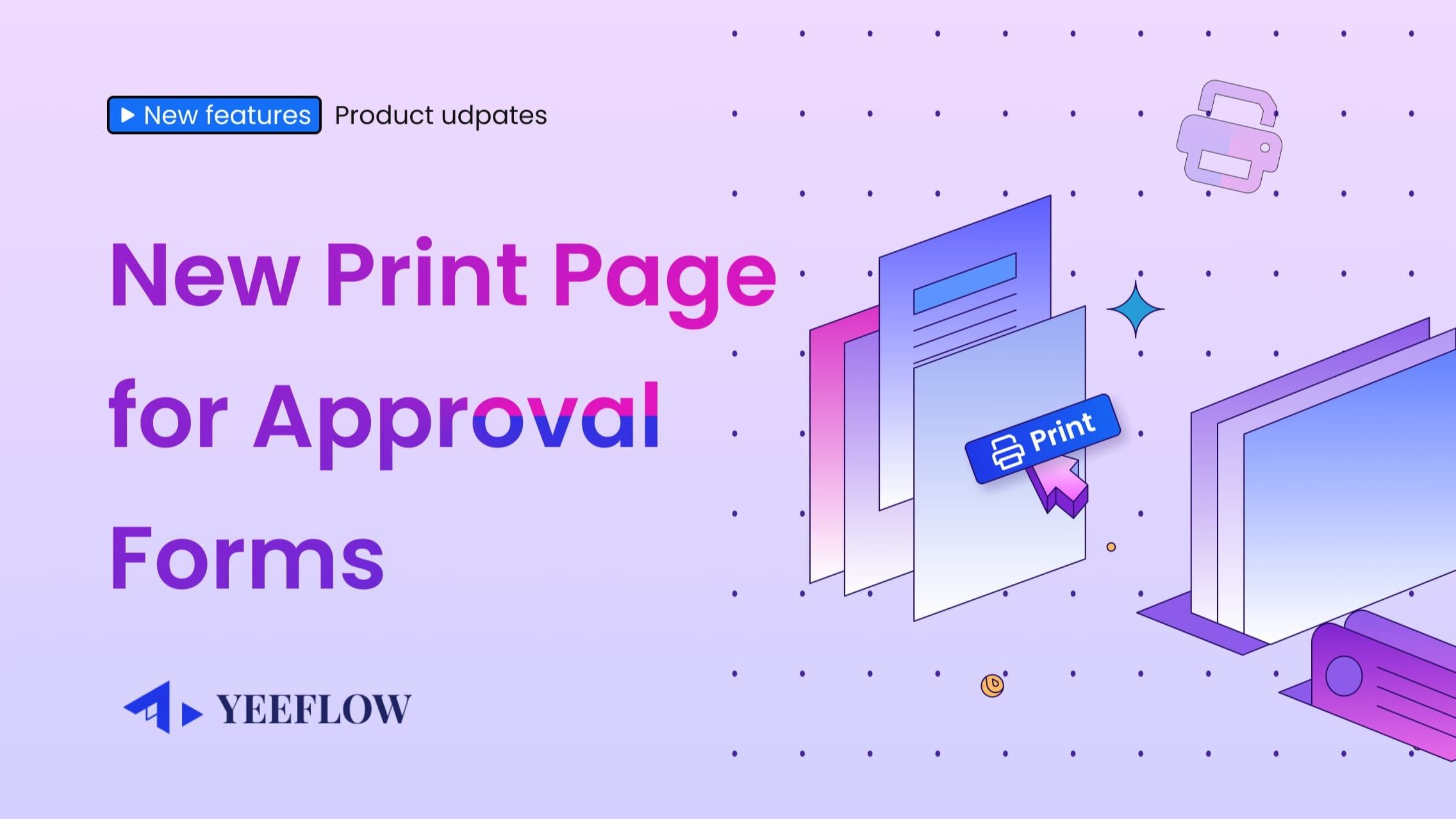
We’re excited to announce a significant enhancement in the January 2025 release of Yeeflow: theNew Print Page for Approval Forms. This update replaces the existing print page designer with a more powerful, flexible, and efficient version. With this new print page, creating and managing print layouts for your forms is easier than ever.
What’s New?
1. Unified Designer for Seamless Copying
The new print page shares the same designer as theSubmission FormandTask Formsin your Approval forms. This means you can now:
•Copy from Existing Forms:Quickly create a print page by copying the layout and elements from an existing submission or task form.
•Streamline Design Efforts:Save time by leveraging designs you’ve already created and focus only on the elements specific to print.
2. Enhanced Control Options
We’ve expanded and improved the controls available in the new print page designer:
•Table Control:Now included in Submission and Task Forms, making it easier to format data-rich layouts.
•QR Code Control:Easily add scannable QR codes for documents or tickets.
•Approval Logs Control:The oldWorkflow Logscontrol is now replaced withApproval Logs, offering more flexible and customizable UI options for tracking approval history.
•All Assignee Context:The “All Assignee” control is no longer included as a standalone feature. Instead, you can access it through theContext in the Expression Editorand display the data using theTextor other controls of your choice.
3. Backward Compatibility
• Existing print pages will remain unaffected and editable using the previous designer.
•New Print Pages:When creating a new print page, only the updated designer will be available, ensuring you benefit from the latest features and enhancements.
Why the Change?
The previous print page designer had limitations that made it difficult to design complex layouts or format variables like dates, currencies, and numbers. Additionally, its separate designer type meant you couldn’t copy layouts from Submission or Task Forms, leading to redundant work and longer setup times.
The new print page resolves these issues by:
• Offering advanced formatting options for variables.
• Allowing seamless copying from existing forms.
• Reducing design effort by unifying the form designer across all form types.
How to Use the New Print Page
Creating a New Print Page
1. Open theApproval Form Designer.
2. SelectPrint Pageand click onCreate New.
3. Use the “Copy from an Existing Page” dropdown to import layouts from Submission or Task Forms, or start from scratch.
Printing with the New Print Page
• The existingPrint Buttonremains available and supports both old and new print pages.
• For more control, use the“Print Page” form action, which offers enhanced options during printing.
Get Started Today
The new print page is designed to make your workflows faster, smoother, and more effective. Whether you’re creating simple layouts or handling complex designs, this update empowers you with better tools to customize and streamline your print pages.
We’d love to hear your feedback on this new feature! Try it out and share your thoughts with us. Stay tuned for more updates coming your way!