
Create, continue and refine with Build with AI

Turn a requirement into an application resource, continue the saved conversation in Ask AI and refine your design with context. Built for application administrators and creators with resource design permissions.

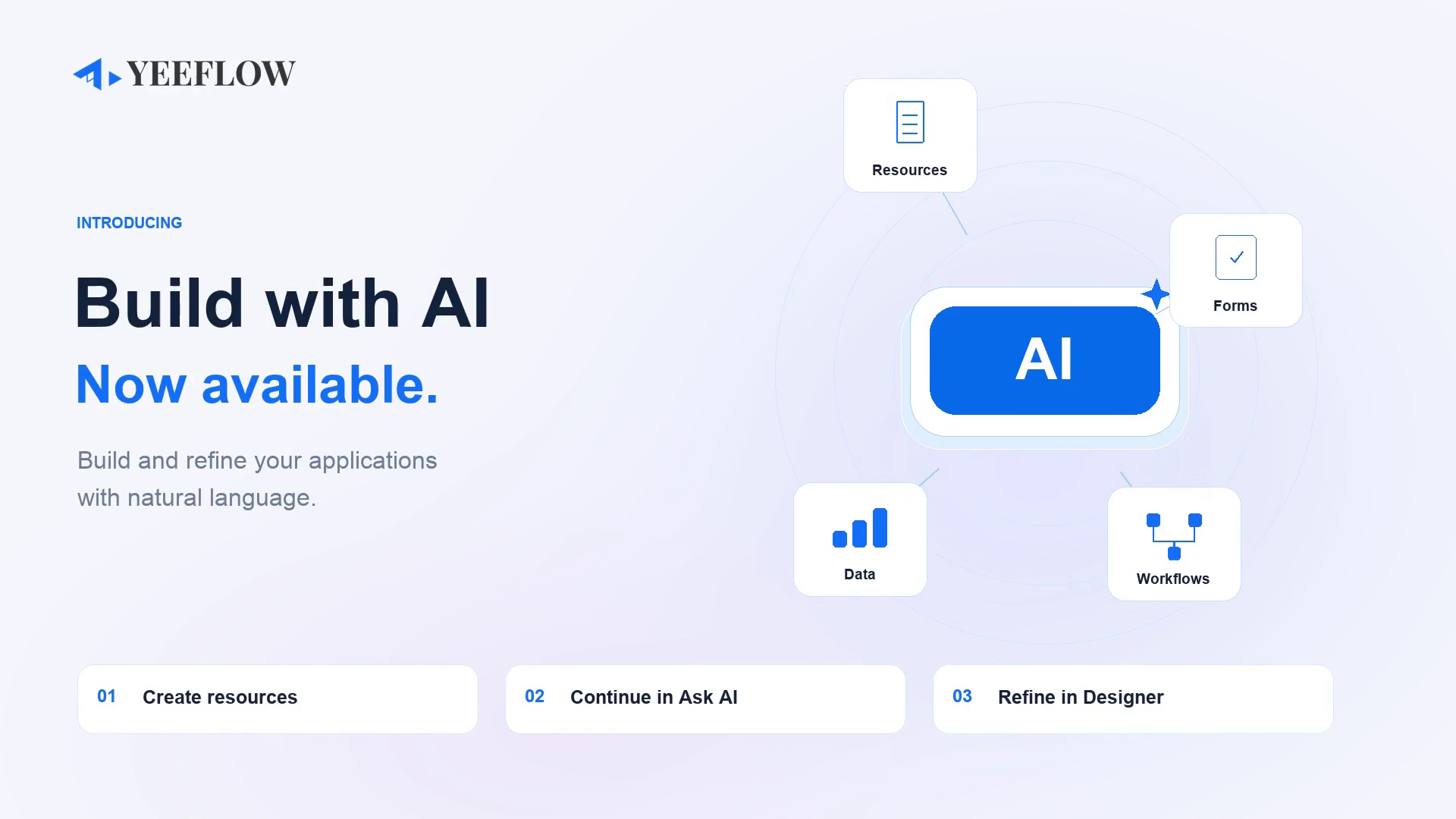
Build with AI launch illustration connecting resources, forms, data and workflows: create resources, continue in Ask AI and refine in Designer.
Conceptual launch illustration: Create, Continue and Refine.

One conversation you can build on

Start in the creation dialog, return through Ask AI and work with the context of your design.

Start with a requirement. Review the plan.

Open New application resource, describe what you need and choose Start with AI. Continue the conversation and review the Implementation Plan inside the creation dialog. Confirm the plan before creation, then open the resulting resource from its result card.

Pick up the same conversation in Ask AI.

After creation, close the creation dialog and open Ask AI → Build with AI. Use history to resume the saved conversation with its request, plan and result. Application administrators can also find existing resources, understand their contents and request changes.

Bring controls and workflow nodes into the conversation.

In a supported designer, switch to Build with AI. Select form controls or workflow nodes and use Add to chat to give your request context. Keep form and workflow changes in the same conversation, then review the changes before saving or publishing.

Seven additional resource types. Eleven in total.

The October 29, 2026 release expands what you can create with AI. These are additional AI-assisted creation options for existing Yeeflow resource types.

Added to AI-assisted creation

  • Document Library
  • Form Report
  • Data Report
  • Knowledge Source
  • AI Agent
  • Copilot
  • Custom Service

Already supported

  • Approval Form
  • Data List
  • Dashboard
  • Scheduled Workflow

Build inside the designer, with review at every step

Designer Build with AI supports Approval Form, Data List List Form and Public Form, Dashboard and Scheduled Workflow. Add selected controls and workflow nodes to chat to explain what should change.

Drag files into chat to add supporting information.
Use voice input to draft text, check it and then send.
Review AI changes before saving or publishing; a change is not an automatic release.