We’re excited to announce a new feature that enhances the flexibility and customization of your Yeeflow applications. As an application creator, you now have the ability to hide the default headers of Approval Forms, List Forms, and Dashboards. This update allows you to create a cleaner user interface and more personalized designs, improving user interaction with your apps.
What’s New?
1. Dashboard Header Customization
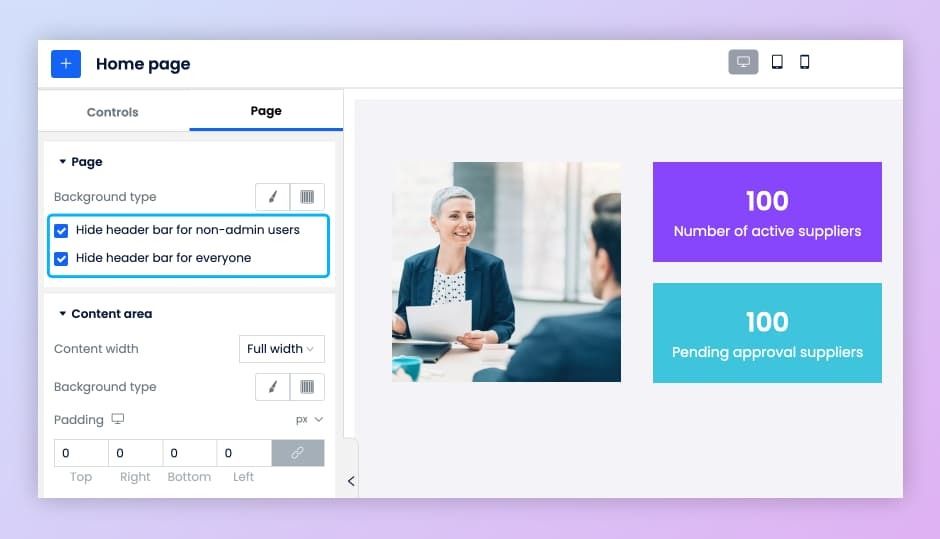
Previously, you could hide the header bar for non-admin users, but now you can also hide the header bar for everyone. This new option can be found under the page settings in the Dashboard Designer. This allows you to streamline your Dashboard layout and focus on displaying key information.
2. Approval Form: Hide Default Header
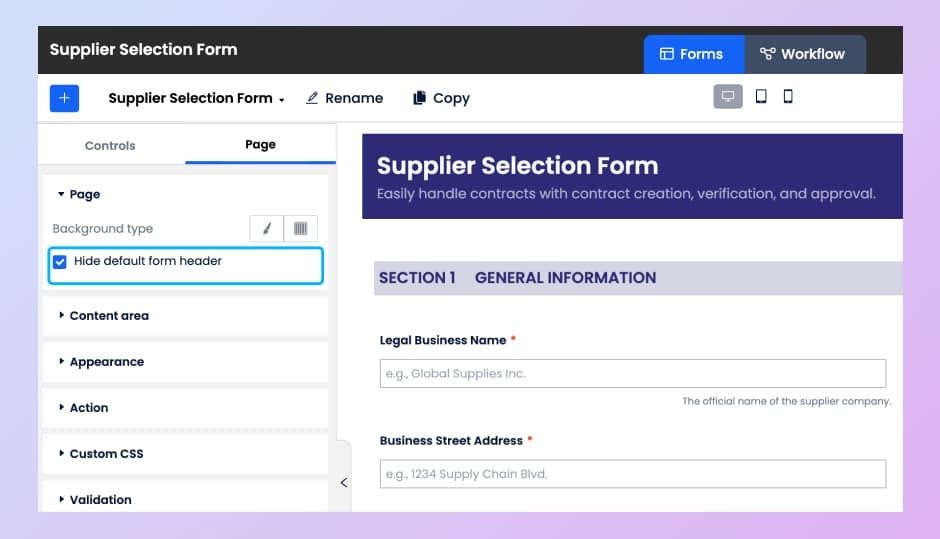
A new “Hide default form header” option is now available in the Page Settings of the Approval Form Designer. By selecting this option, users will no longer see the form’s default header, including the “Submitted” and “Draft” tabs—only the submission form will be displayed. This gives your form a cleaner look and removes unnecessary visual elements. For easy navigation, you can configure the “My Request” menu item on your app’s navigation bar to help users locate their form submissions.
3. List Form: Two New Options
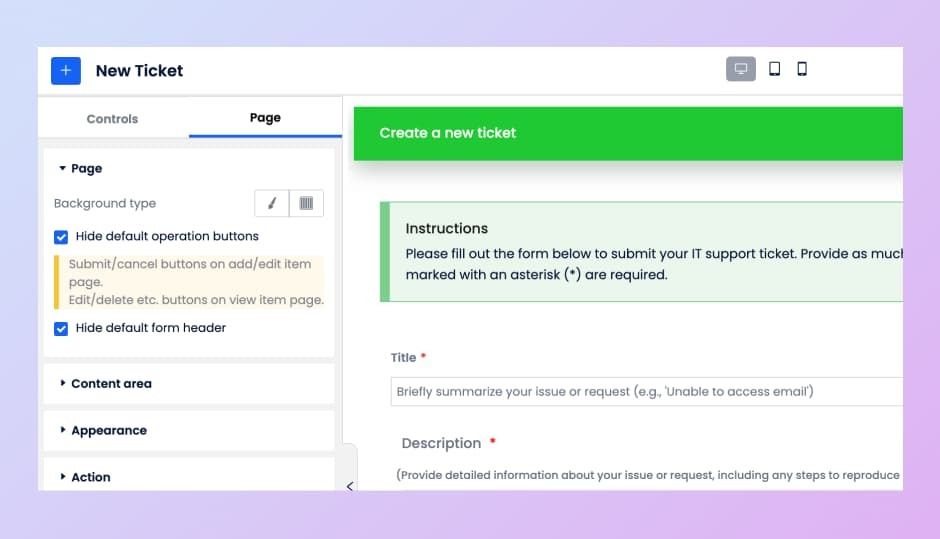
When configuring List Forms (Data Lists), you’ll find two new options under Page Settings:
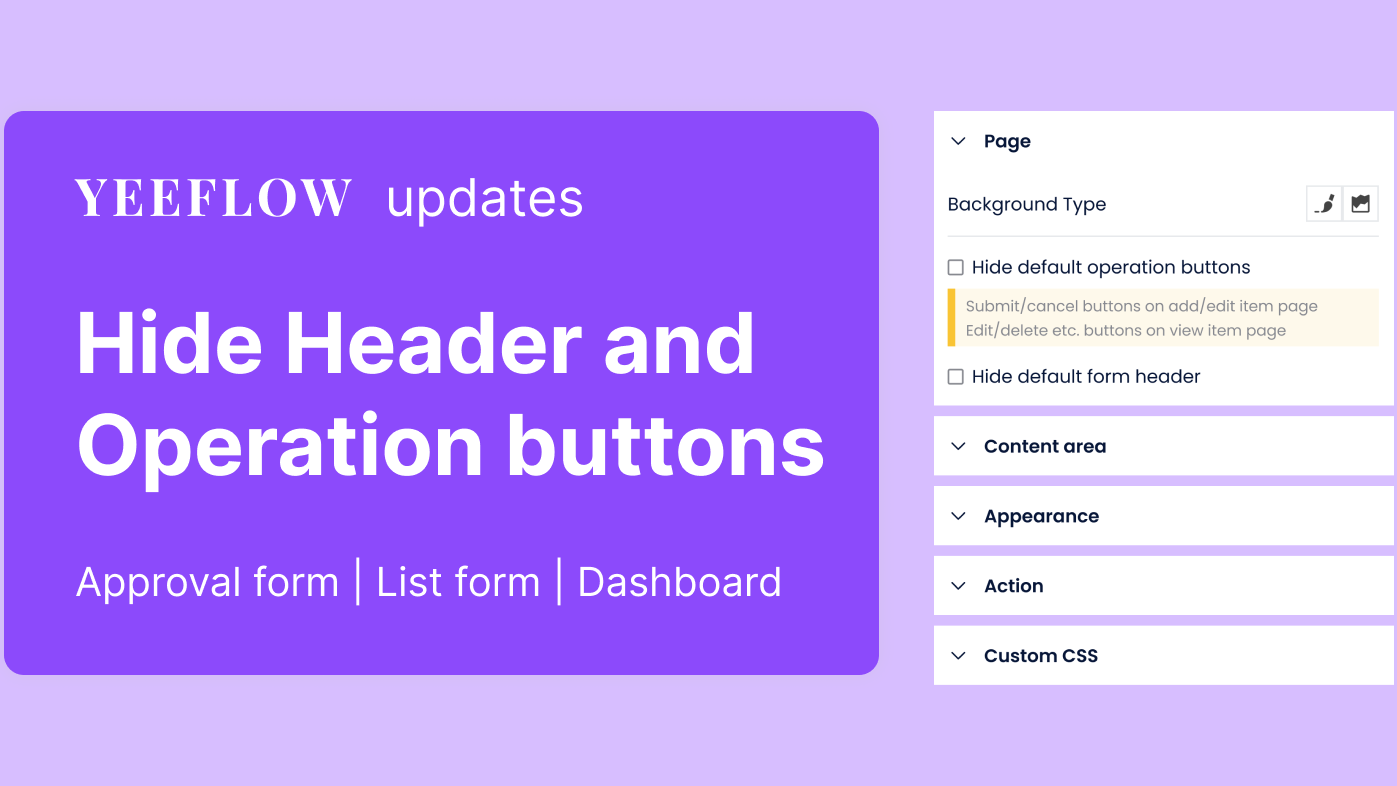
•Hide default operation buttons: This option removes the default buttons such as “Submit,” “Cancel” on the add/edit item forms, and the “Edit,” “Delete,” or other action buttons from the view item page.
•Hide default form header: This option hides the entire header of the form, giving you more control over the form’s appearance.
Why Does This Matter?
This update allows you to simplify your app interfaces and customize the design to better fit your needs. If you want to create a more minimalistic or branded interface, or if you plan to design your own headers and buttons, these new settings are highly valuable.
Example Use Cases:
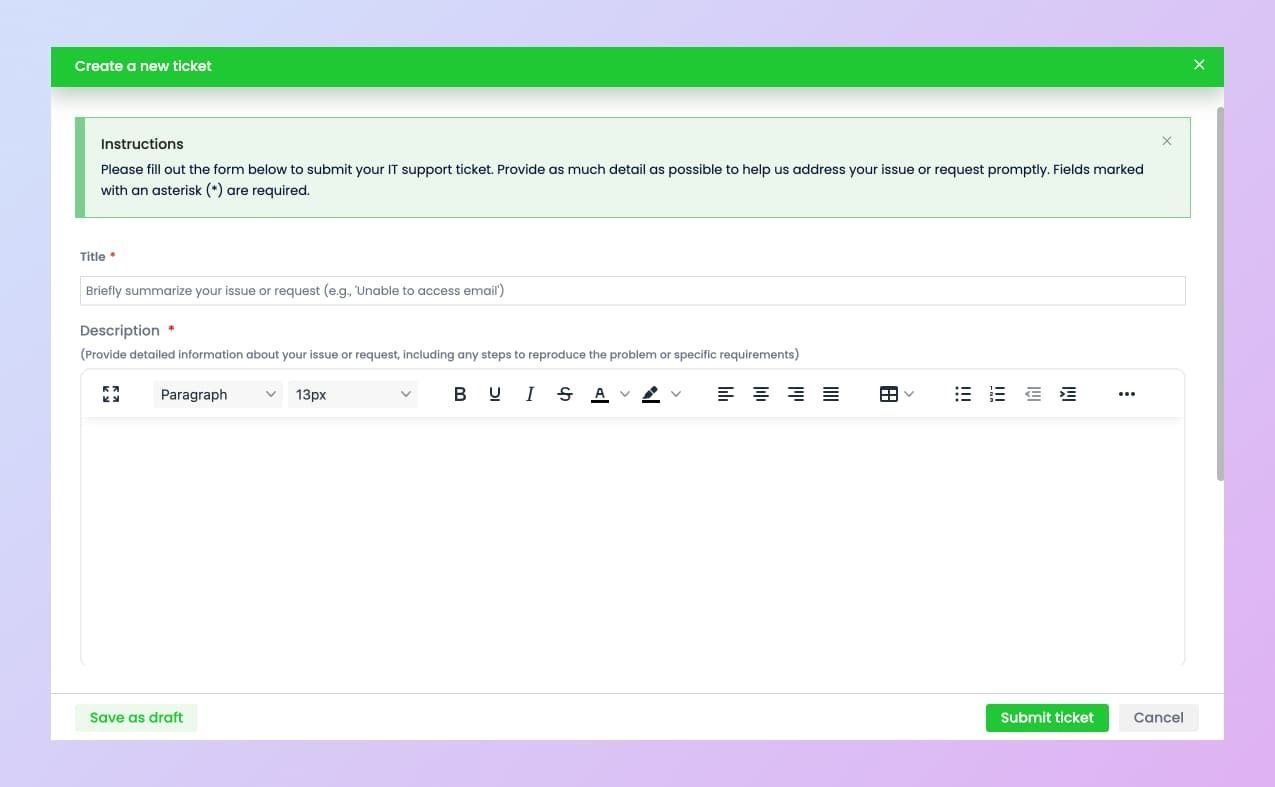
•Data List: When adding new items, you can customize the window’s title and color, replacing the standard header with your unique design.
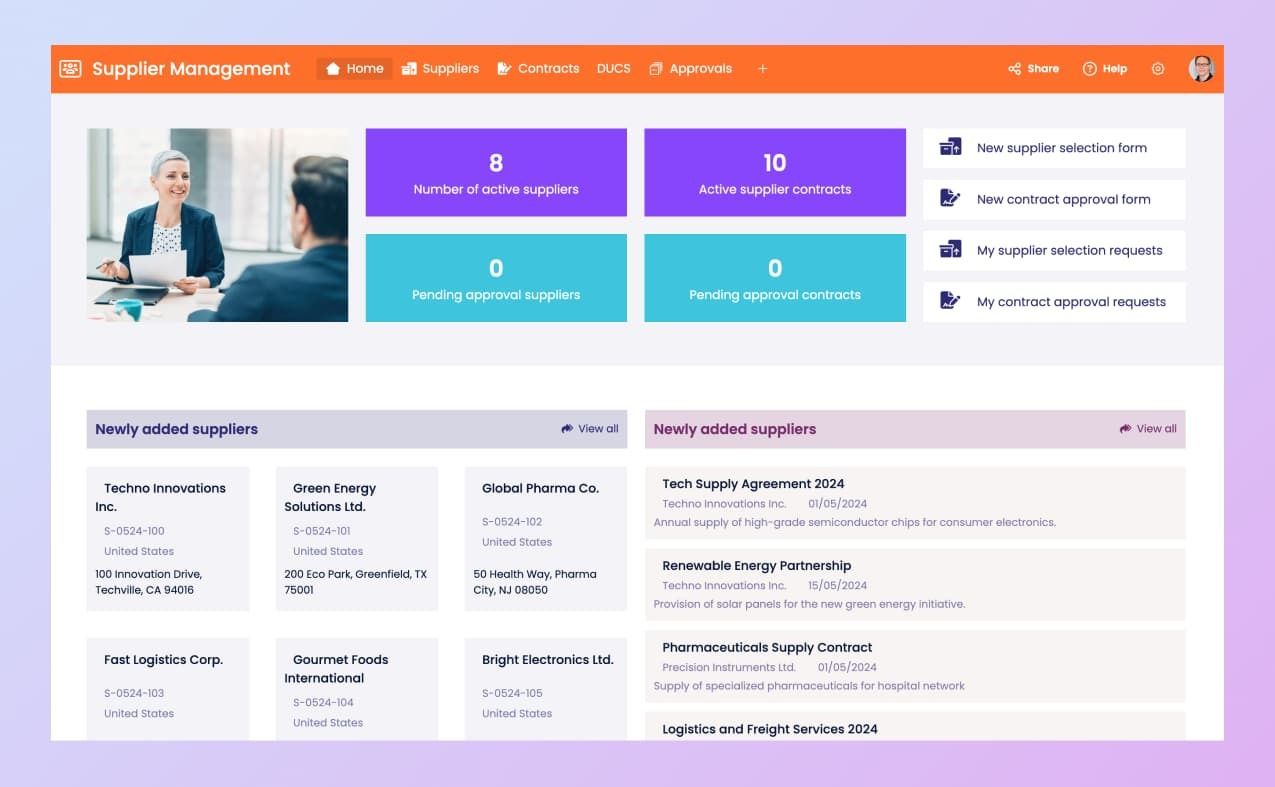
•Dashboard: Remove the header bar to declutter the page and maximize space for content.
How to Access Hidden Settings?
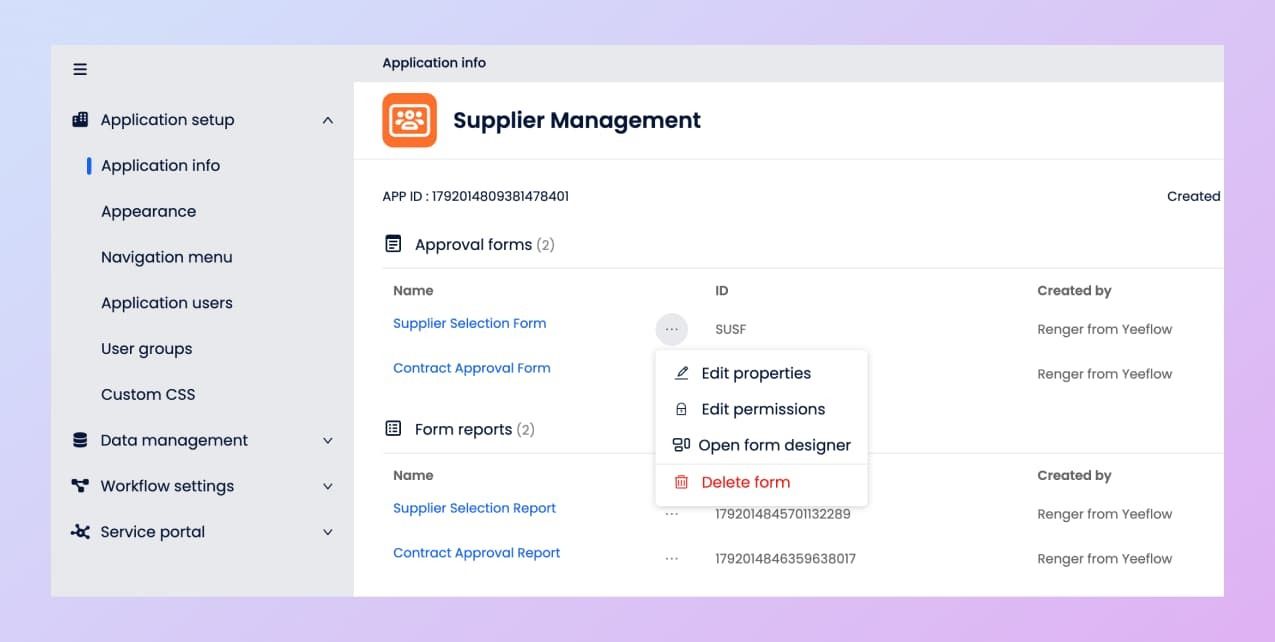
If you hide the headers of Approval Forms or Dashboards, you may wonder how to access their settings afterward. You can navigate to theApplication Settings>Application Infoin your app. From there, you’ll find a list of all your components, and by clicking the three dots next to each one, you can open the settings menu to edit properties or access the form designer.
Enhance Your User Interaction with Flexible Design
This new feature empowers you to provide a more streamlined and polished user experience, giving you full control over how forms and dashboards appear and function within your application.