We've recently added the function of settingdynamic styleof controls. This feature is set to improve the way you design and interact with your applications, making them more intuitive, engaging, and aligned with your unique needs and style preferences.
What's New?
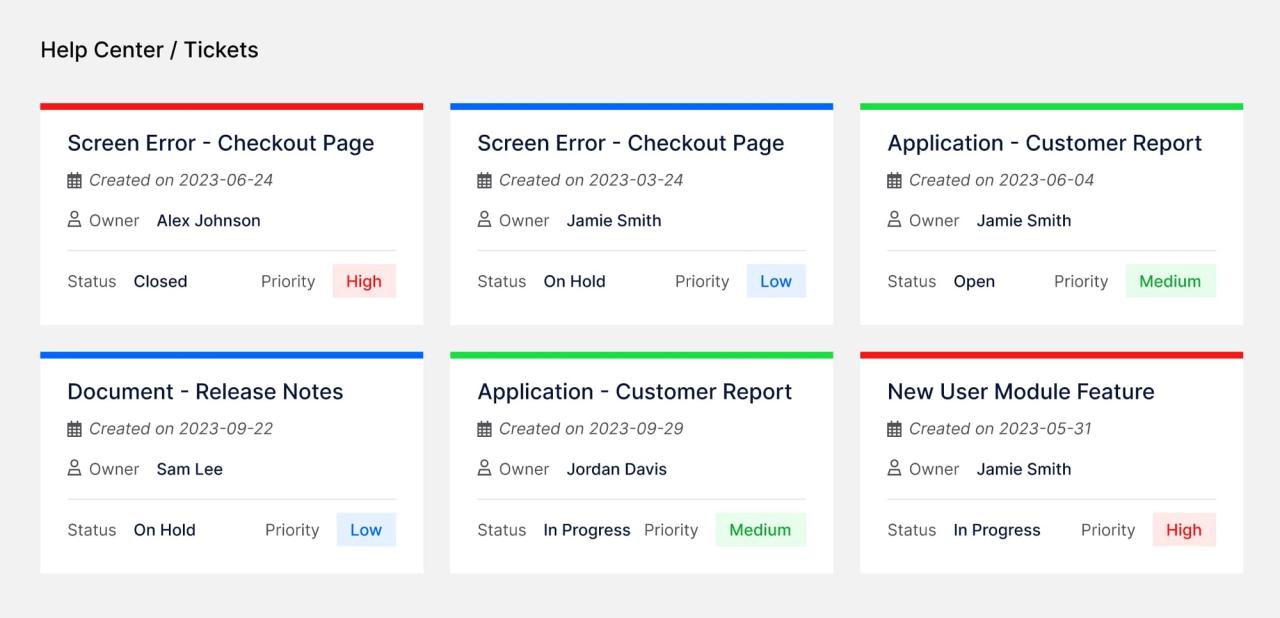
Now, you can apply dynamic styles to your Yeeflow controls, including Containers, Text, Paragraphs, Icons, and Buttons. Customize background color, text color, border, and shadow based on conditions you define. Whether it's highlighting critical tasks, indicating status, or simply bringing a fresh look to your interface, dynamic styles adapt in real-time to your data and user interactions.
Key Features
- Conditional styling: Set styles to change based on specific conditions within your data or user actions. Make elements stand out or blend in by changing colors, borders, and more.
- Supported controls: Apply dynamic styles to a variety of controls such as Containers, Text, Paragraphs, Icons, and Buttons, giving you flexibility and creativity in design.
- User-centric design: Enhance user experience by making important information pop, guiding users through tasks, and reducing cognitive load with visual cues.
- Easy to set: Dynamic Style Settings work hand-in-hand with the existing Yeeflow Expression Editor, making it easy to define and manage your conditions and expressions.
How to Get Started?
To begin using Dynamic Style:
- Choose a control in your Yeeflow application that you wish to apply dynamic styles to.
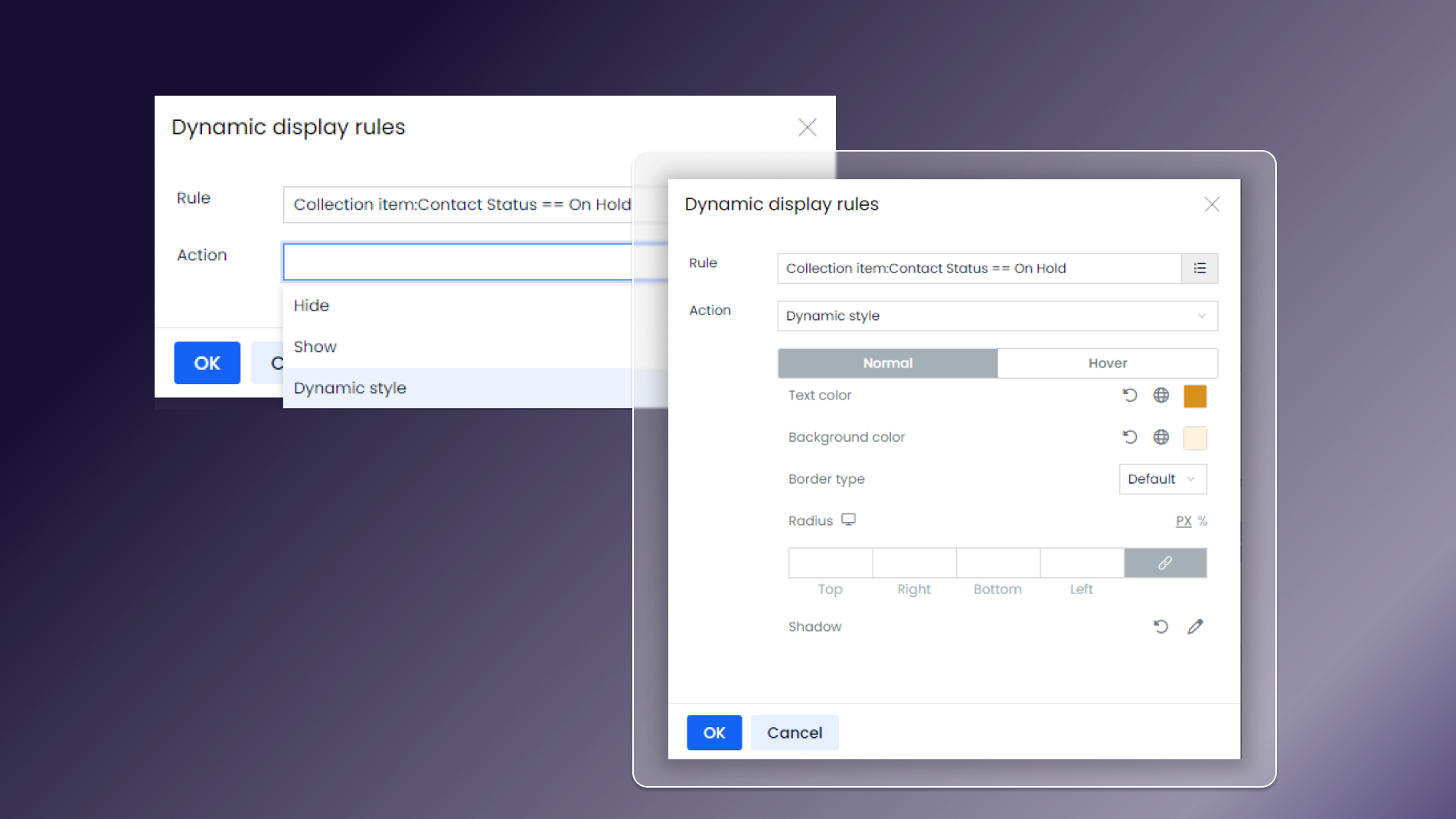
- Navigate to the settings panel and click on the "Dynamic display rules" under the Appearance group.
- Select "Dynamic style" from the Action's dropdown list and set your conditions and desired styles.
It can specify the visual appearance for both the regular and hover states of a field, outlining the characteristics like text color, background color, border type, radius, and shadow.
Learn More:
Ready to dive in? Check out our detailed guide to leverage the full potential of Dynamic Style Settings.
Take a look