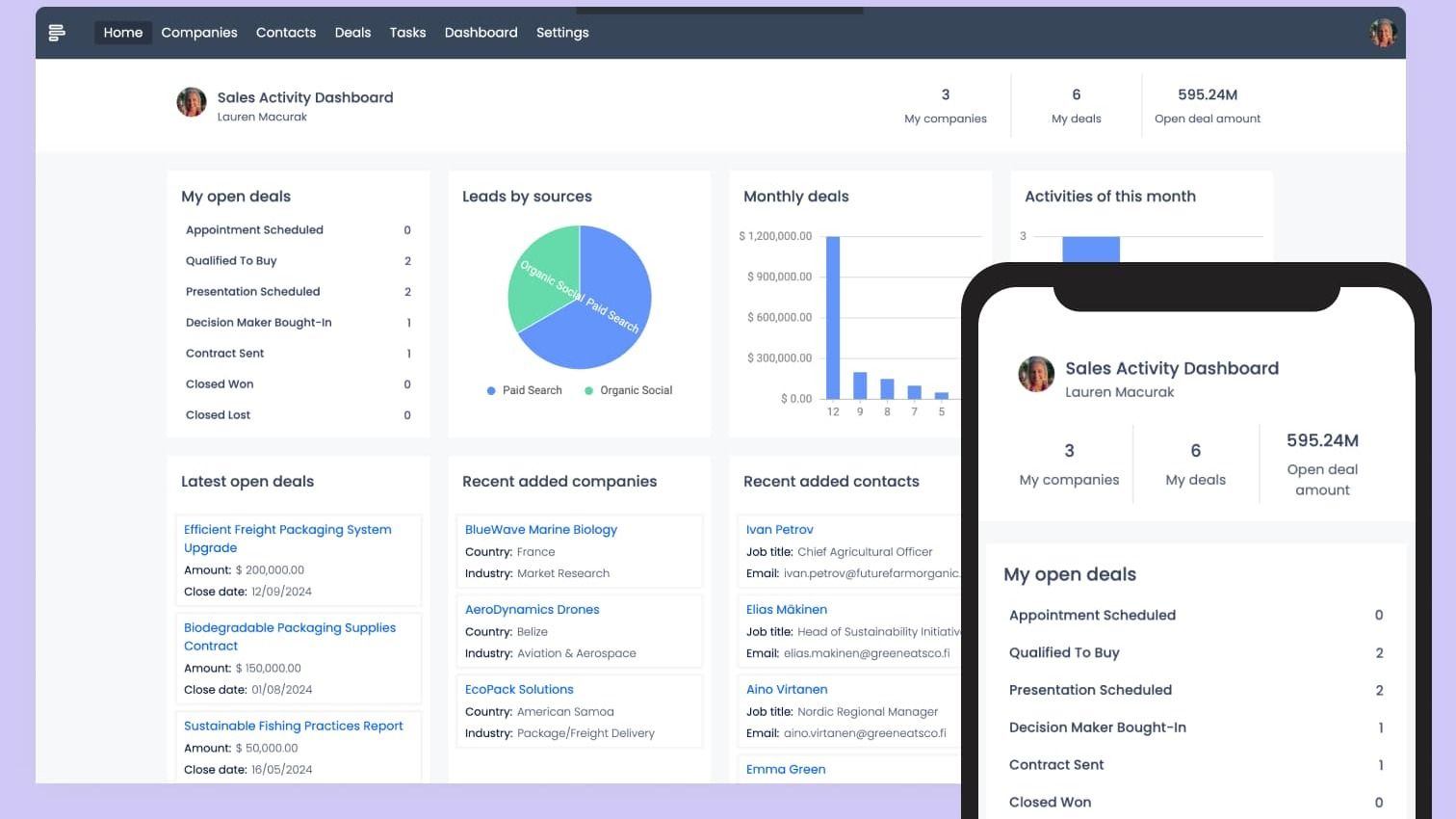
We understand the importance of maximizing screen space and providing a clutter-free interface that enables you to focus on your valuable content. With that in mind, we are introducing the Navigation Layout Settings, empowering application admins to set the navigation menu to display on the header bar.

Here's how this enhancement will transform your experience:
Streamlined and Clean Interface:
By relocating the navigation menu to the header bar, we have freed up valuable screen space, allowing your content to take center stage. Say goodbye to unnecessary distractions and enjoy a cleaner, more focused working environment.
Efficient Access to Navigation:
The new header bar navigation ensures quick and effortless access to key sections and functionalities of the application. Whether you need to navigate between modules, access settings, or jump to specific workflows, it's just a click away, providing a seamless user experience.
Customizable and User-Friendly:
We understand that every organization has its unique preferences and workflows. With the Navigation Layout Settings, application admins have the power to customize the navigation menu according to their specific requirements. Tailor the header bar to display the most frequently used sections, ensuring a personalized and efficient workflow for your teams.
More Space for Content:
With the navigation menu elegantly tucked away in the header bar, you now have more space to showcase your valuable content. Whether it's important data, detailed reports, or critical information, this enhancement allows you to utilize the available screen real estate more effectively, enhancing productivity and readability.
/
Getting started with the new Navigation Layout Settings is simple:
Access your application settings as an admin.
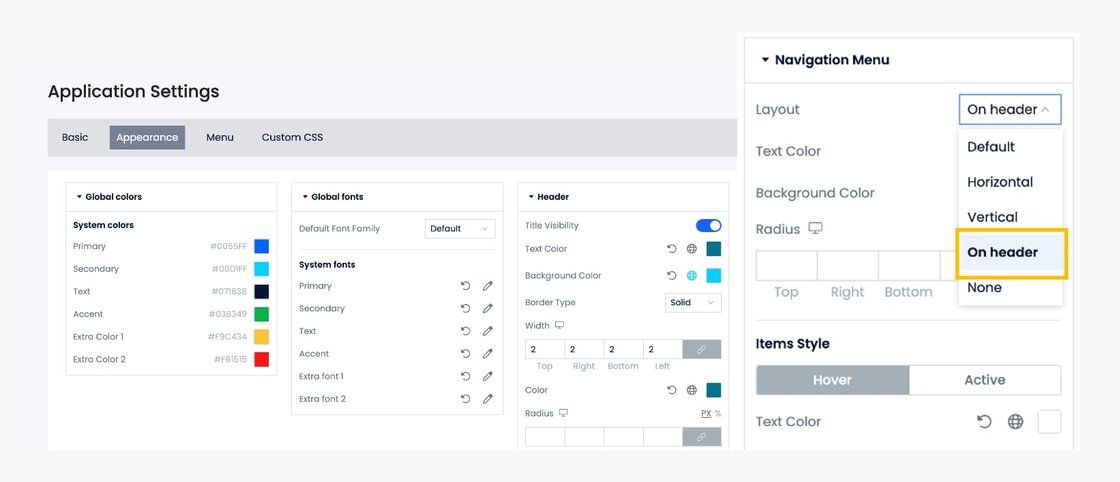
Navigate to the Application settings, and open the Appearance Settings section.
Configure and customize the navigation menu layoutaccording to your preferences.
Choose the new “On header” option from the dropdown list, then save the changes, and voila! Enjoy the new naviation layout and optimized content display.
We invite you to explore this exciting new feature and embrace a more streamlined, clutter-free application interface. We value your feedback and are excited to hear your thoughts as you explore the possibilities that the new Navigation Layout Settings bring.