
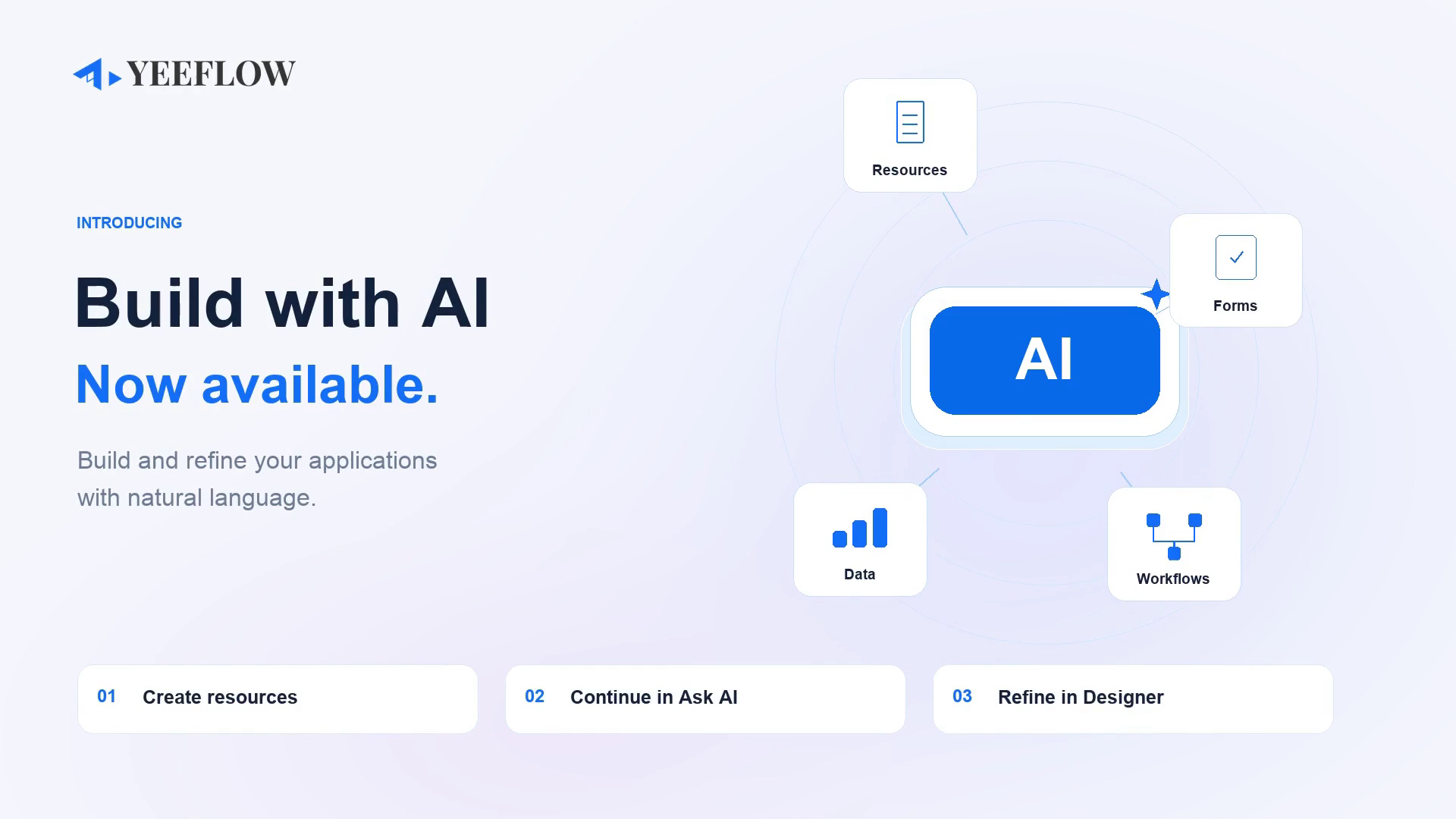
The October 29, 2026 release expands AI-assisted creation in Yeeflow and gives application administrators a connected way to create resources, return to a saved conversation and refine designs with context.
Create a resource with a reviewed plan
Open New application resource, describe what you need and choose Start with AI. Continue the conversation and review the Implementation Plan inside the creation dialog. Confirm the plan before creation, then use the result card to open the resource.
The conversation stays in the creation dialog during this process. After creation, you can return to it through Ask AI.
Seven additional AI-assisted creation options
You can now use AI-assisted creation for seven additional resource types:
- Document Library
- Form Report
- Data Report
- Knowledge Source
- AI Agent
- Copilot
- Custom Service
These join the four previously supported types: Approval Form, Data List, Dashboard and Scheduled Workflow. That brings AI-assisted resource creation to eleven types. The expansion adds AI-assisted creation for these resources; it does not introduce seven entirely new resource types to Yeeflow.
Continue the same conversation in Ask AI
After creating a resource, close the creation dialog and open Ask AI → Build with AI. Use the history menu to find the saved conversation and continue from the original request, plan and result.
Application administrators can also find existing resources, understand their contents and request changes. Drag files into chat to provide supporting information, or use voice input to draft text. Check the text before sending it.
Refine with designer context
In a supported designer, switch from Build Manually to Build with AI. Select one or more form controls or workflow nodes and use Add to chat to include them as context for your request.
Designer Build with AI supports Approval Form, Data List List Form and Public Form, Dashboard and Scheduled Workflow. You can include form controls and workflow nodes in the same conversation as you move between Forms and Workflow.
Review the changes before saving or publishing. An AI-assisted edit is not an automatic publication.
Try it in your application
For application administrators and creators with resource design permissions, start with a small, clearly described resource. Review the plan, inspect the result and continue the conversation as your requirements develop.
Explore Build with AI or schedule an online demo to discuss your use case.